What is it?
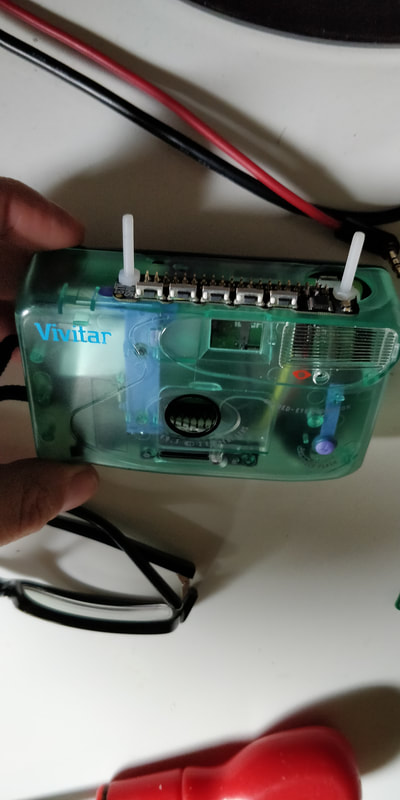
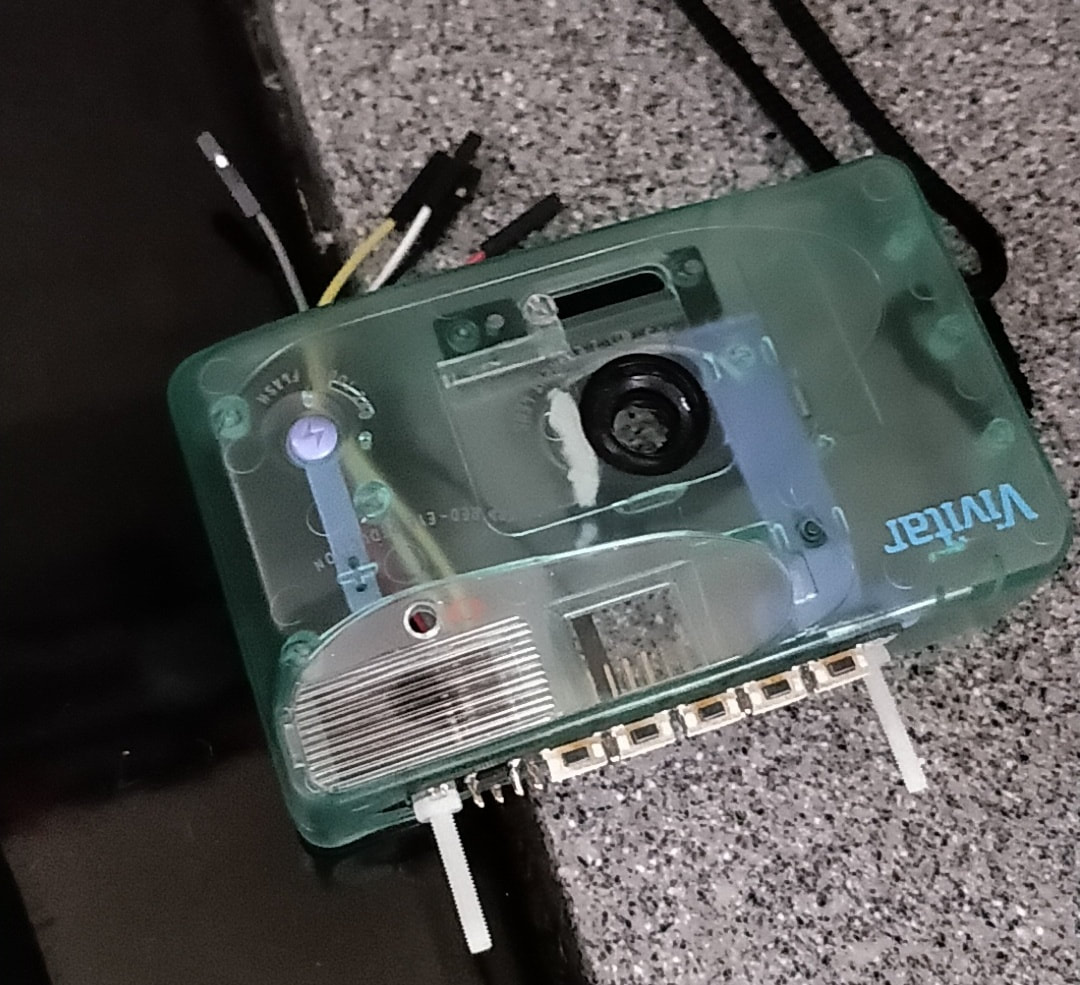
This super-duper pimped out camera, the 'Camera Tell' enables you to take a picture and then it is analysed for you. Then the content of the image is read out to you, for example, "the picture contains, a cat, a tree and a bike". This started off as a fun project but as I was developing it I thought that it could be used as an aid to support people identifying where there were, what an object was and even what another person was feeling. So I added several other functions, take a picture and you can,
1) Read the content of the image 2) Identify a landmark 3) return the emotions that people in the image are displaying 4) Identify a specific logo or brand 5) Shut down the camera! |
The Camera Tell in Action |
Google Cloud Vision
|
All this is made possible via the Google Cloud Vision which has a wide range of 'image analysis tools'. You can try out the web based version here: Simply upload an image and the content of the image will be returned to you
To use any of the Cloud features you will need to first, head over to https://cloud.google.com/vision/ and set up the credentials to use the API. You need an account and also you will have to add your credit card details so that you can access the processing. Don't worry though, this account is free and you are not charged, as long as you stay within your free credit limit. I think the standard amount is £235. Download the JSON details to your Pi and then you are good to go. |
Reading LabelsThe first program that you will want to try is the 'reading labels'. This nifty little code looks at the image and then returns labels, basically what is in the image. It can even identify common objects like cars, lights and a Rubik's cube! Once you have your Cloud account set up, open your Python 3 editor and enter in the code below. In this example the image file is named 'image1,jpg'. You can replace this with the name of your file and also the JSON file on line three.
import io import os os.environ['GOOGLE_APPLICATION_CREDENTIALS'] = 'replace with your JSON file' # Imports the Google Cloud client library from google.cloud import vision from google.cloud.vision import types # Instantiates a client client = vision.ImageAnnotatorClient() def image_content(): content_list = [] # The name of the image file to annotate file_name = os.path.join( os.path.dirname(__file__), 'image1.jpg') # Loads the image into memory with io.open(file_name, 'rb') as image_file: content = image_file.read() image = types.Image(content=content) # Performs label detection on the image file response = client.label_detection(image=image) labels = response.label_annotations print('Labels:') for label in labels: print(label.description) # append to the list content_list.append(label.description) There is a large range of detail tutriasl and code avaiable from the Cloud website, check them out at https://cloud.google.com/vision/docs/tutorials |
Pi CameraOnce you are up to speed with various features of the Cloud Image service then you can add the Pi Camera to your set up. This means that you can take a live image and then upload it to the cloud and retrieve feedback in real time.
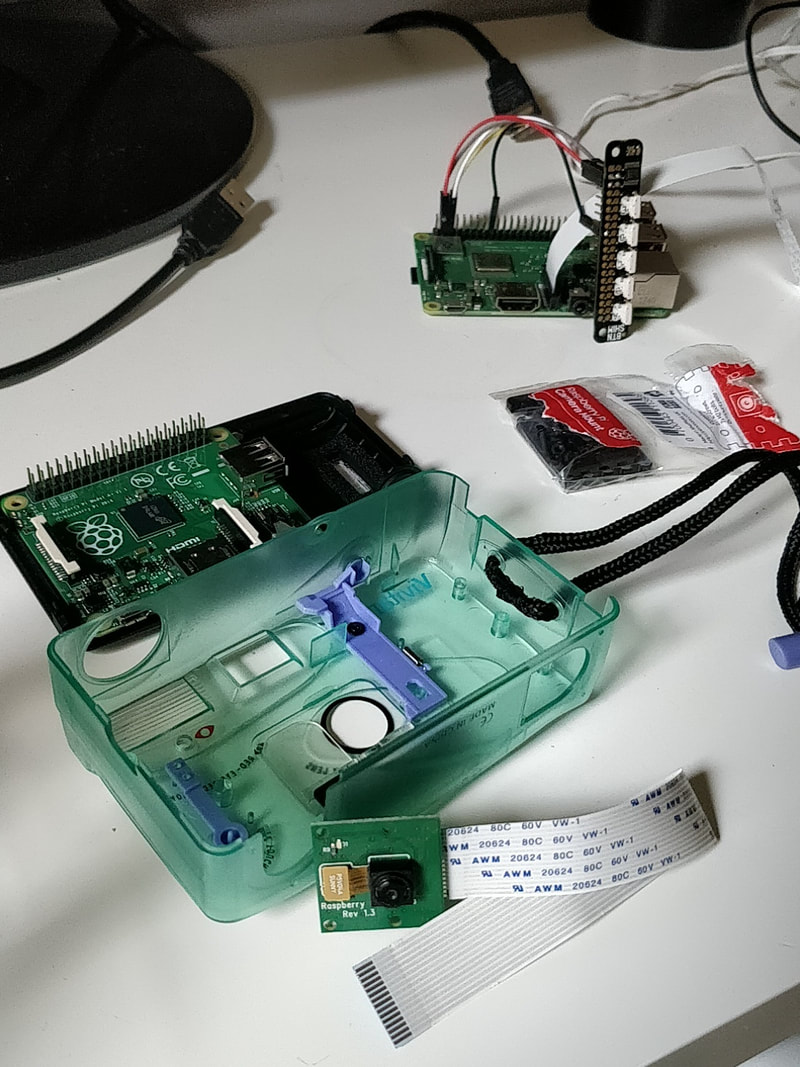
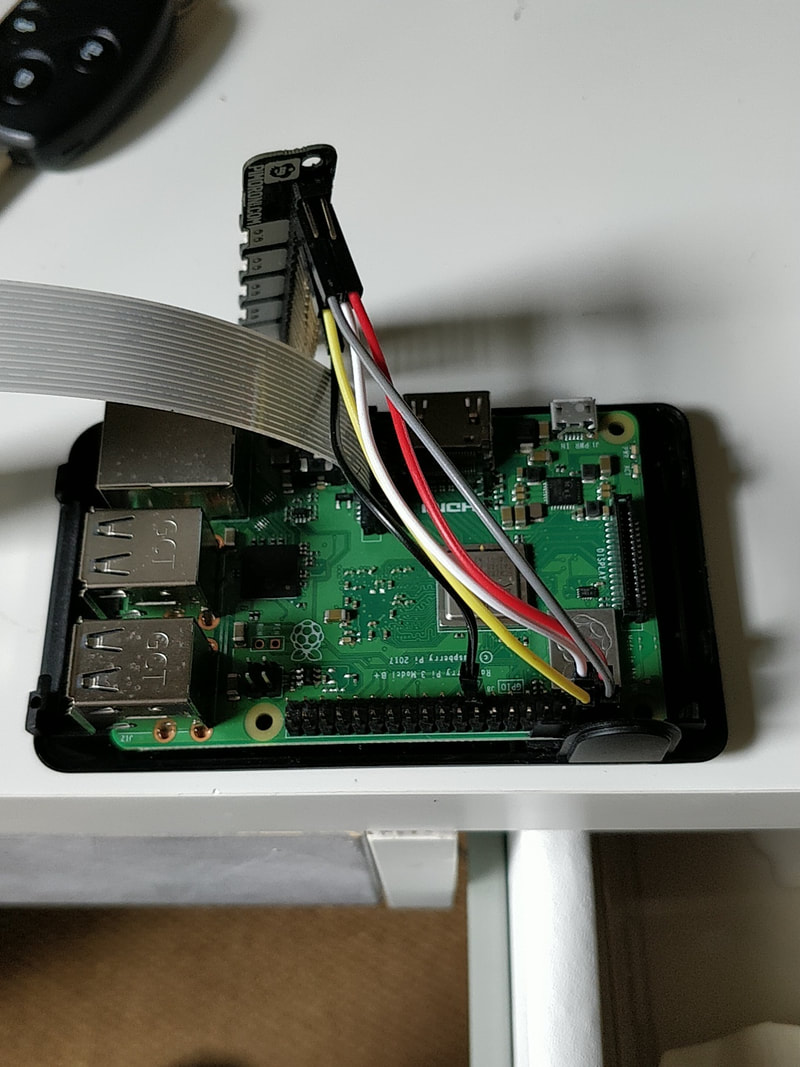
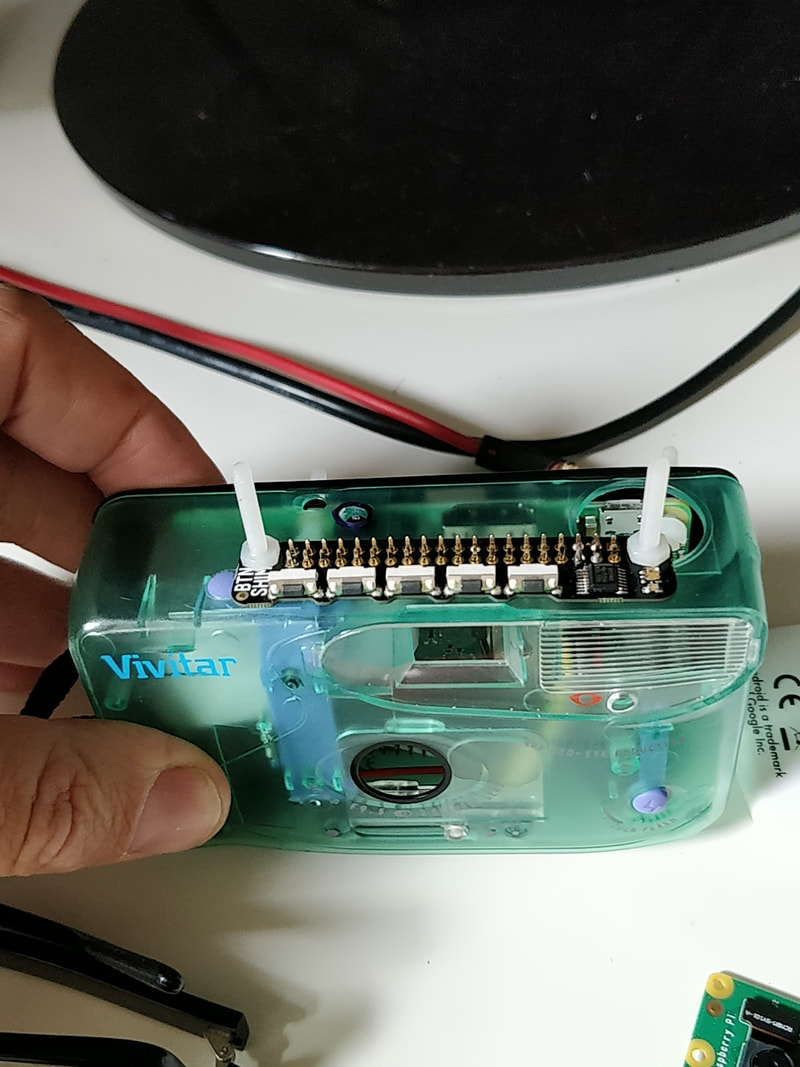
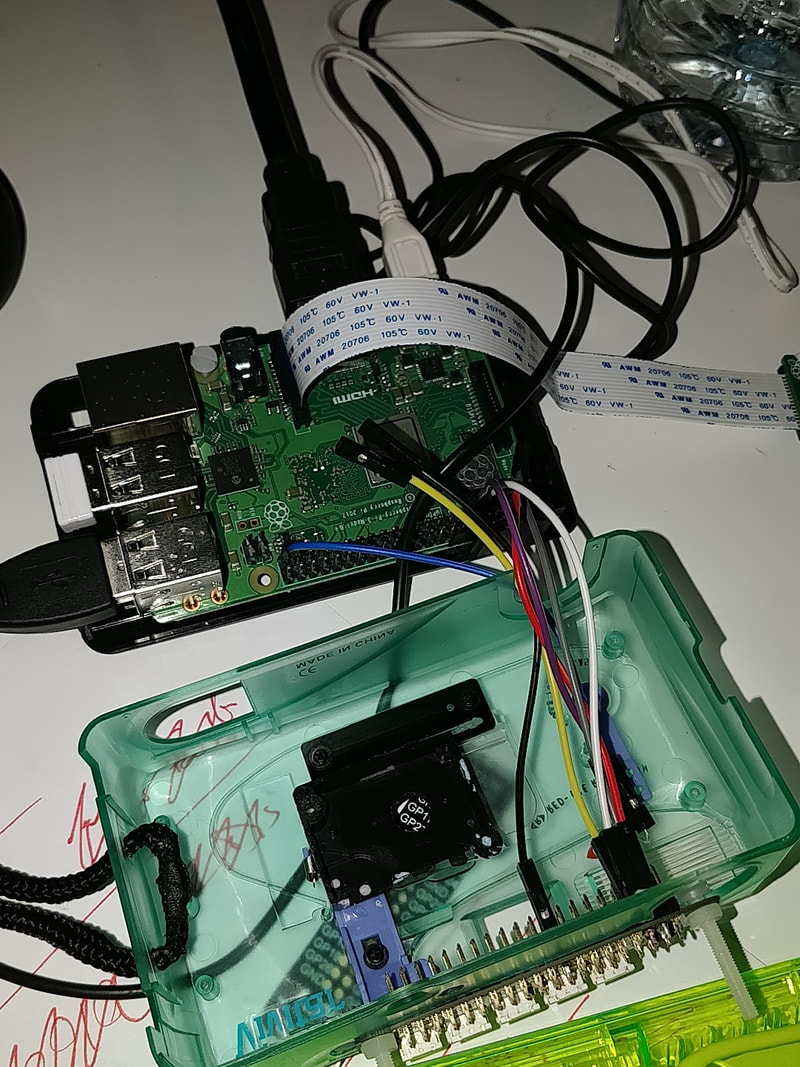
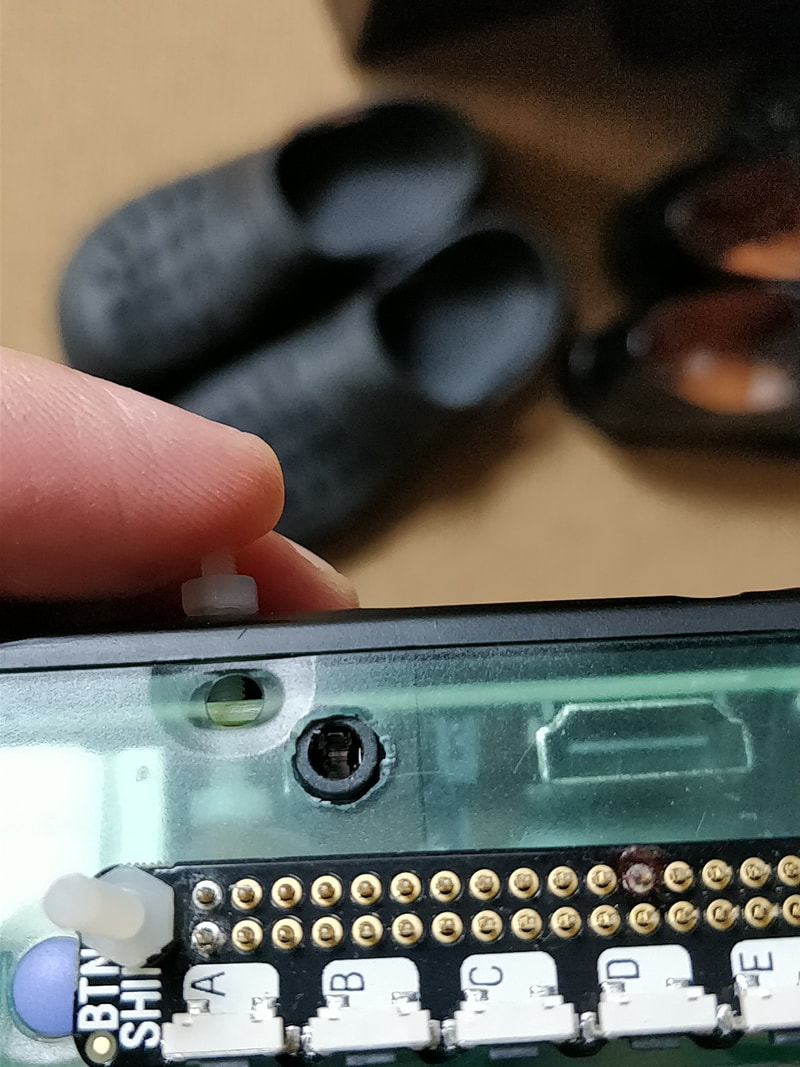
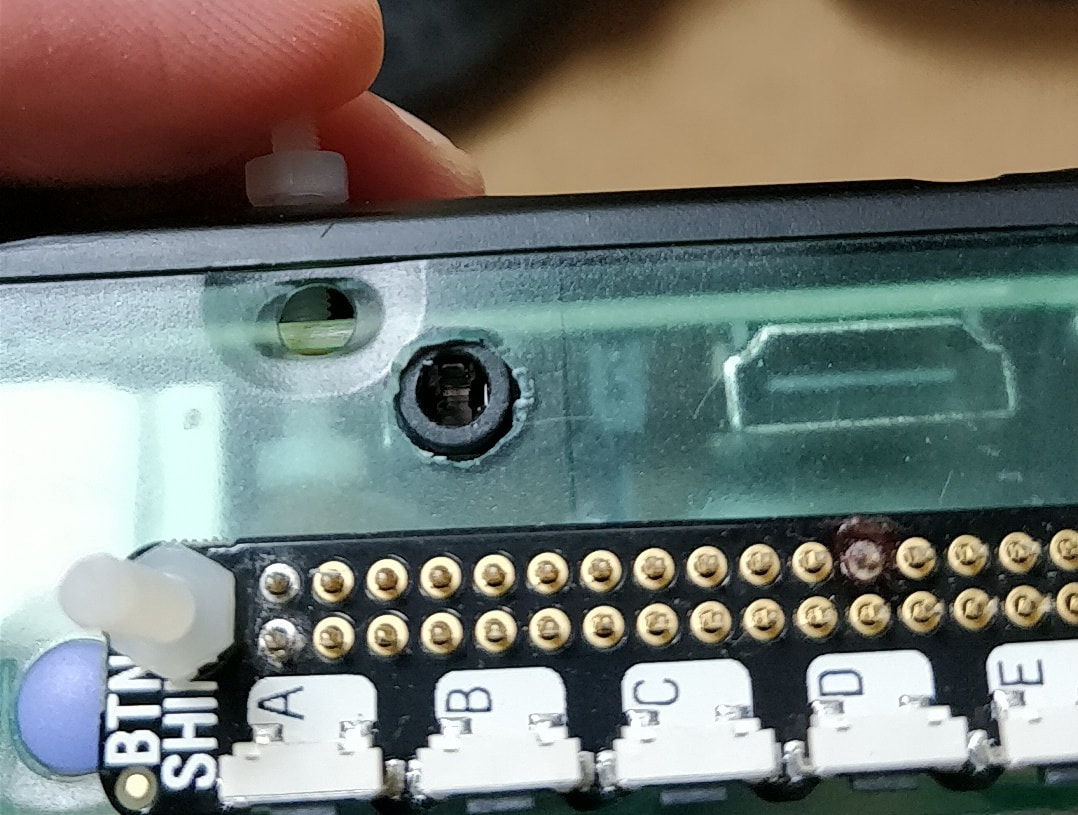
I used the Pi Camera Version 2 as this has 8 mega pixels and the images are a good quality. You can adjust the resolution of the image to improve the upload speed, but this depends on your bandwidth. Adding ButtonsPimoroni Button SHIM is a cool HAT which adds five buttons and a RGB LED which can be used as an indicator. Head over to here to purchase one. Easy to install and even easier to code and program each button.
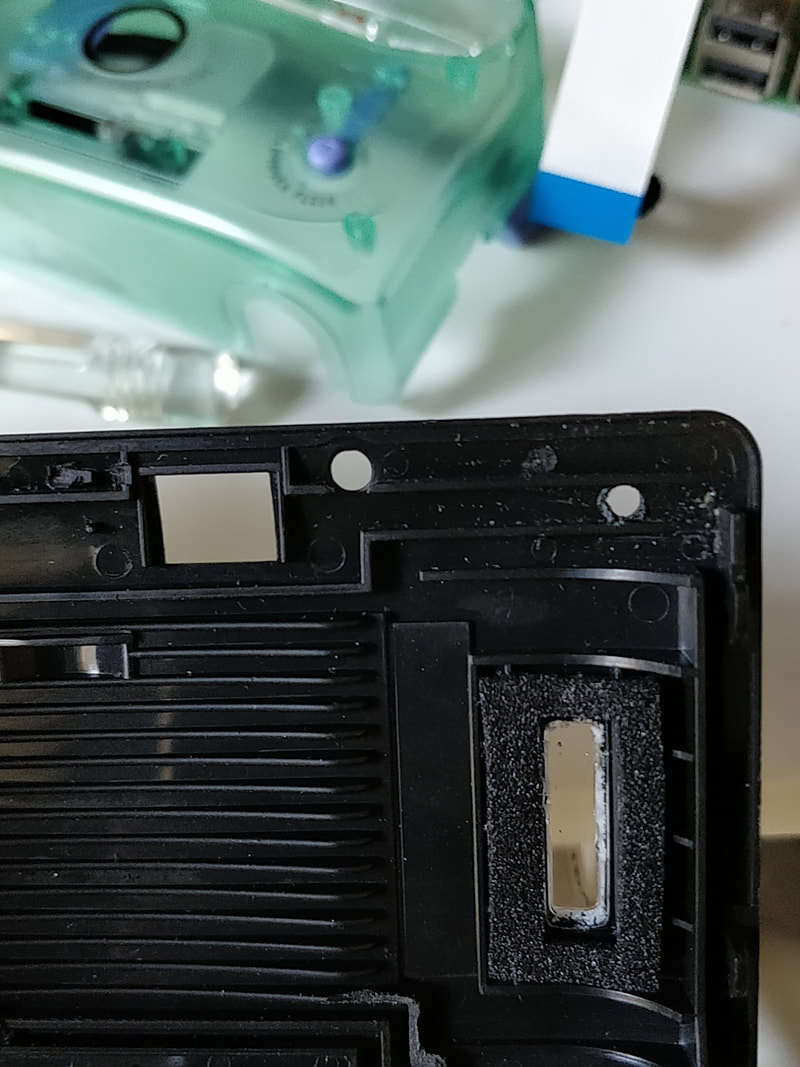
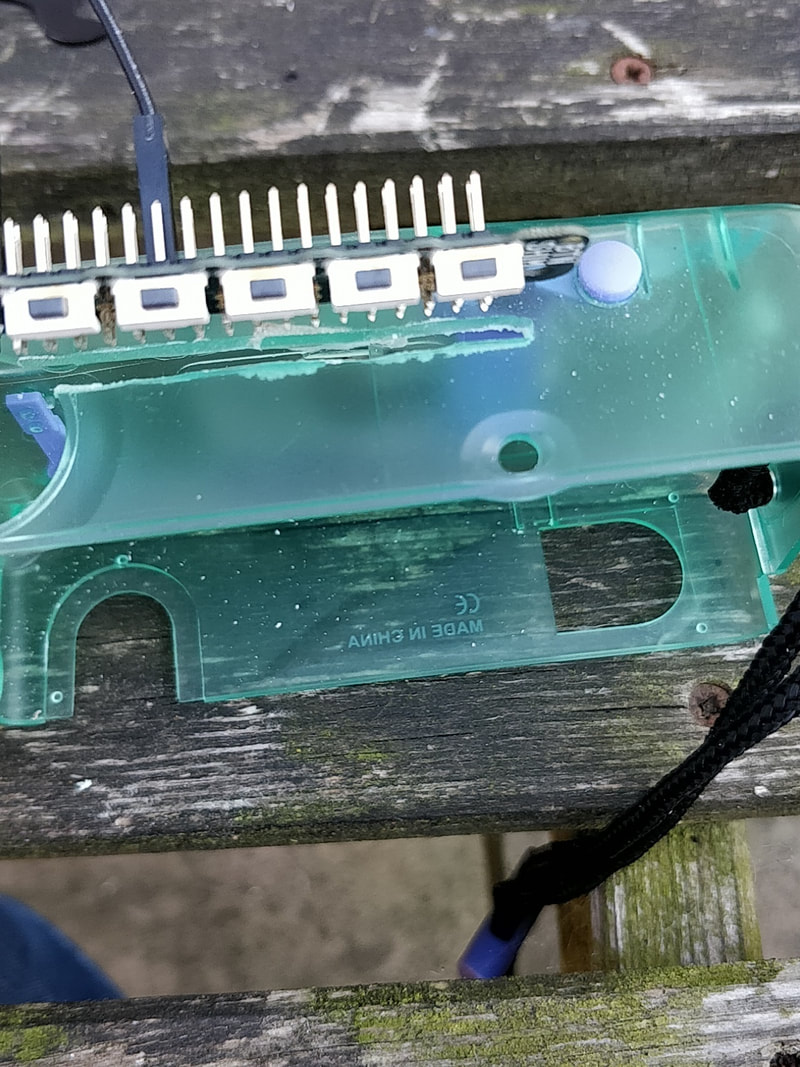
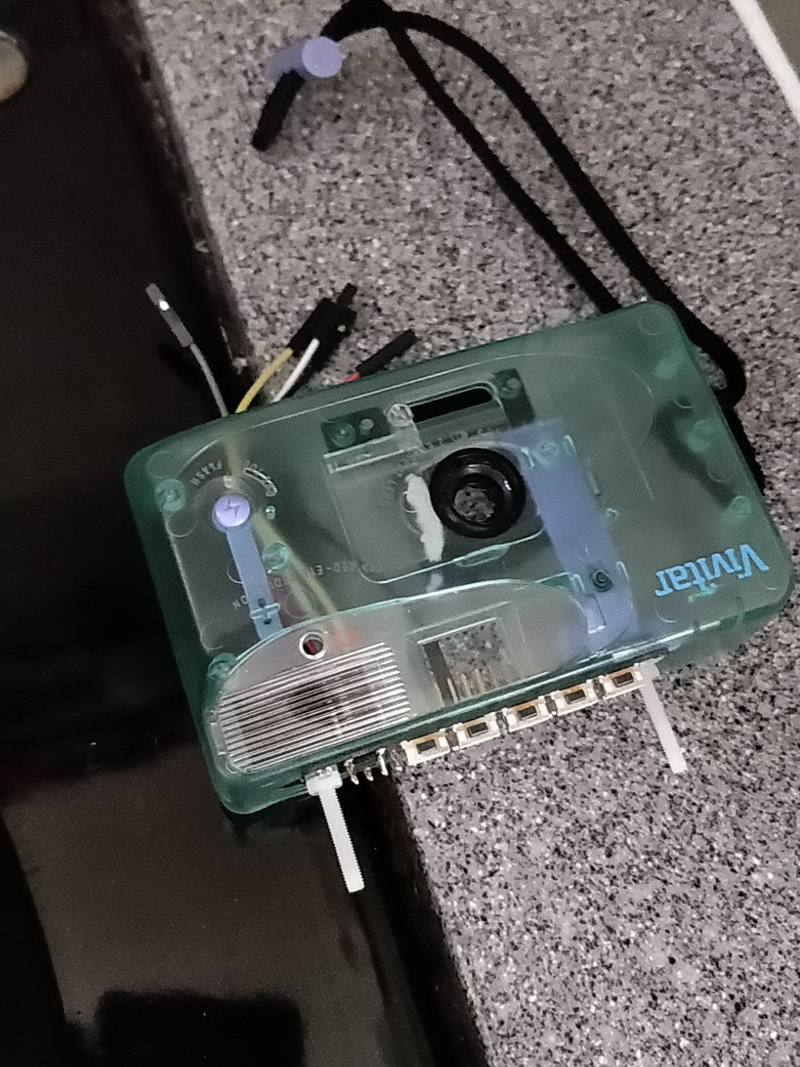
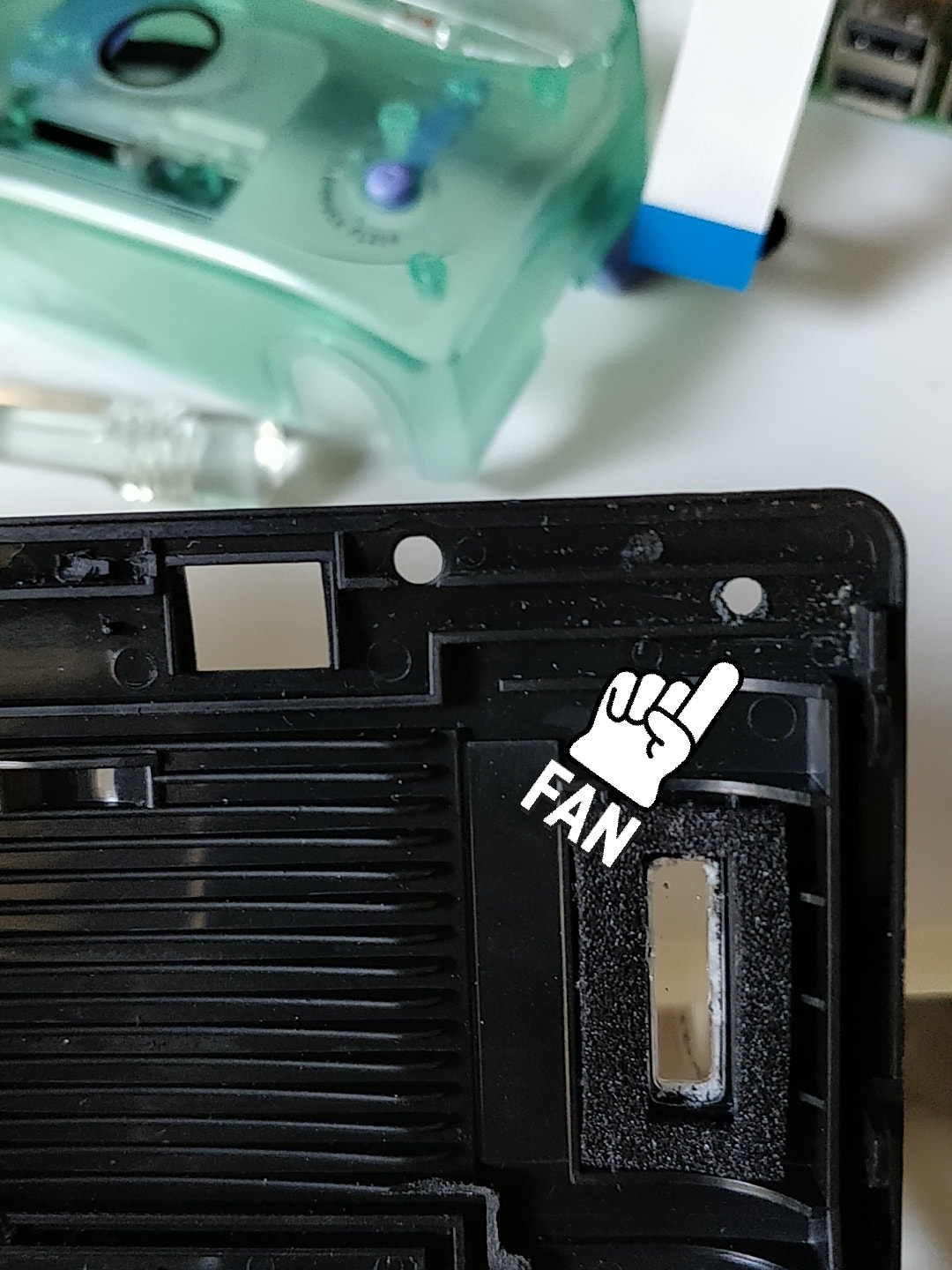
Putting it all togetherThe final part of the project was to use the Google Voice API to create a number of speech files for the introduction and instructions. Then the same API is used to tun the content labels, or the logo, emotions etc. in speech files so that they are read out to you. I also added a 'shutter' sound so that the user knows when the image has been captured. The whole project was then embedded into an old retro camera just to make it look proper sick!!

|