What is it?We have probably all checked the train times or forgotten them or misread them and missed a train to then be left searching for the next available one. There are many websites, apps and timetables but these, although quick still require you to unlock your phone, load the app and enter the stations. This can take some time. If you make the same journey each day between the same stations can you imagine how useful a simple program could be that when run loaded the next time for the next train to your destination? Let's scrape some train times!
The Basic PlanThe original idea and concept was brought to my attention by txt3rob for a section of my Project New York. However, the whole function and parts of the solution are smart and create a useful scraping tool, Big up to @SmspiUk for the support.
The solution has several parts but in essence is simple:
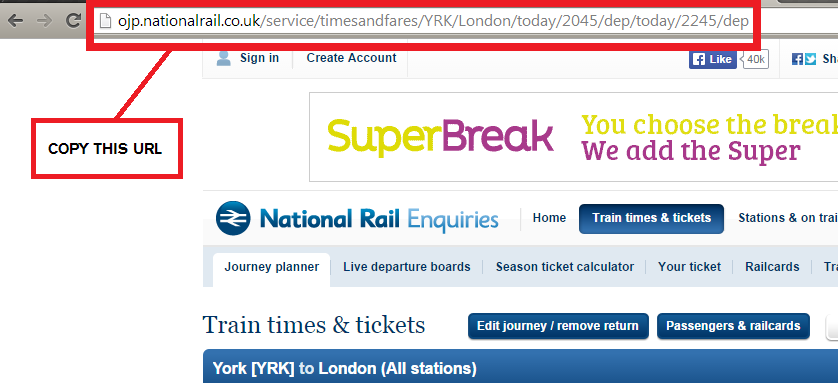
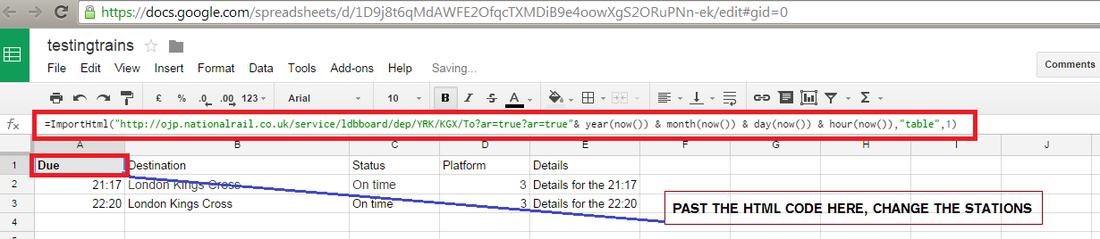
Parts 1 and 2The first part is to go to National Rail and enter the details for the two stations that you wish to travel between. Press enter and this wil load up the train times. The URL in the address bar is basically the data link that you need but it will need editing to make it fully functional. The HTML is standard for all searches so you can copy the code below and change the station abbreviations. A full list of these can be found here, check the abbreviations as some are not obvious, for example London Kings Cross is KGX not LKG!

Parts 3 to 5Next sign up for Google Drive or log in if you already have an account. Create a New Google Sheet and save it. Then basically copy your HTML code and past it into the first Cell A1, this will then begin downloading the train time data to the Sheet. By reversing the station abbreviations you can also then copy and paste the return times into the same sheet.
|
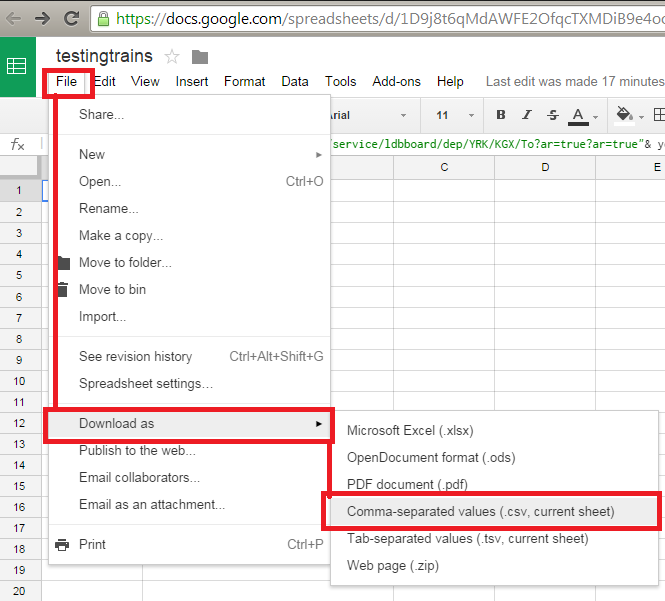
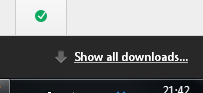
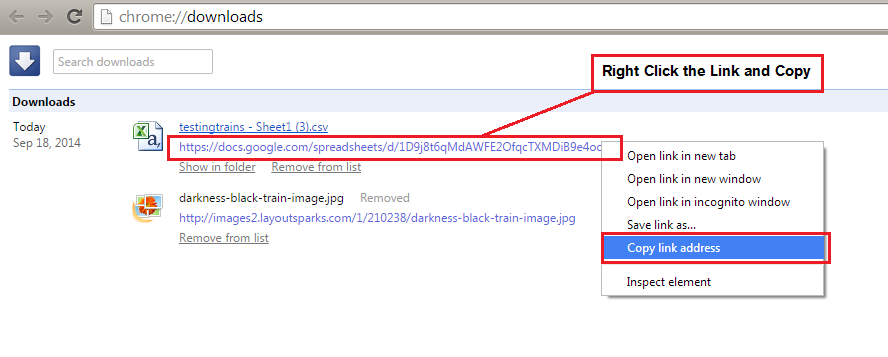
Trains in ActionParts 6 and 9This part is really simple, basically (ensure that you are using Chrome) once the data has loaded into the Sheet then right click and download the file as a CSV file. At the bottom of the screen is the download link, click this opening the download folder. Find the downloaded train CSV file and right click the download URL. This will be used later in the Python program. However, there is one final edit to make to this URL, everything after format=CSV needs deleting, shown below in red.
Before: https://docs.google.com/spreadsheets/d/1D9j8t6qMdAWFE2OfqcTXMDiB9e4oowXgS2ORuPNn-ek/export?format=csv&id=1D9j8t6qMdAWFE2OfqcTXMDiB9e4oowXgS2ORuPNn-ek&gid=0 After: https://docs.google.com/spreadsheets/d/1D9j8t6qMdAWFE2OfqcTXMDiB9e4oowXgS2ORuPNn-ek/export?format=csv&id=1D9j8t6qMdAWFE2OfqcTXMDiB9e4oowXgS2ORuPNn-ek&gid=0 Part 10 The Python CodeThe last part of the solution is to create the Python program that will scrape the file at the end of the URL link for the train data and return it to the CSV file. First you need to create the CSV file in your folder or the same location where the Python program will run. In the example below the CSV file is called trains.csv. The program makes use of the url library, urllib, to open the download url that your created in the previous steps, them code that opens the file, writes it and finally closes the CSV file. A time delay of 60 seconds has been added to ensure that the data can be downloaded to the file.
import os import urllib import time web_file = urllib.urlopen("ENTER YOUR URL FROM PART 6 & 9 HERE" ") out_file = open('trains.csv', 'w')time.sleep(50) out_file.write(web_file.read()) out_file.close() time.sleep(10) print "files written" Remember to enter your URL in line three, urlopen(" add yours here), save the program and run in the LX Terminal. 
| ||||
- Home
- Python
- Ras Pi
-
Pi Hardware
- Pi-Hacks
-
Pi-Hacks 2
- The Joker
- Hologram Machine
- Google Vision: Camera Tell
- Yoda Tweets
- Pi Phone
- Darth Beats
- Twitter Keyword Finder
- Crimbo Lights Hack
- Xmas Elf
- Halloween 2016
- Halloween Hack 2015
- Socrative Zombie
- Voice Translation
- The Blue-Who Finder
- GPIO, Twitter
- Pi Chat Bot >
- PiGlow & Email
- Pibrella Alarm System
- SMS with Python >
- Pi-Hacks 3
- Minecraft
- Computing
- Contact Me
- Random Hacks