TeCoEd (Teaching Computing Education)
  • Home
    • Freelance
    • Book
    • Downloading
  • Python
    • Learn Python >
      • Python Modules
    • PyGame Zero
    • Python Programs >
      • Higher or Lower
      • Magic Calculator
      • Password Checker
      • Python Pit
    • What's News App
    • Pixels to Cells
    • Python Mosaics
    • Python OCR
    • L-1-AM
    • Web Scraping >
      • Scraping Trains
    • Weather App
    • Snakes and Windows
    • Python Web Server >
      • Flask
    • Python Picks
  • Ras Pi
    • All About the Pi
    • Getting Started
    • Remote Desktop and VNC
    • Static IP Address
    • Sonic Pi >
      • 3.14
    • Twitter Feed >
      • Tweepy
    • Android & Pi >
      • Advanced Apps
      • Odds
    • A.I on the the Pi
    • CRON
    • Pick Your Own
  • Pi Hardware
    • Pi HATS >
      • Sense Hat Hacks
      • AstroPi HAT
      • Unicorn-HAT >
        • Unicorn Alphabet Disco
        • Uni Codes / Programs
      • Skywriter
      • Piano HAT
    • STS Pi
    • Pi Camera >
      • Pi-Cam, Python & Email >
        • Time Lapse
      • Pi Noir
    • Pipsta >
      • Flask, Input & Printers
    • Raspberry Pi Power >
      • Energenie IR power
    • Pibrella
    • Distance Sensor
    • LCD Screen
    • Pi-Tooth
    • Robot Arm
    • PiGlow
    • PiFM
    • Accelerometer
    • PiFace >
      • Installing PiFace >
        • Python Commands
  • Pi-Hacks
    • Drone Hacks
    • Pi Glue Gun Hack
    • Blinkt!
    • Sonic Pixels
    • R2D2
    • Get to the chopper
    • Astro Bird
    • Twitter Translator
    • Hacking a Robot
    • Nature_Box >
      • Best Nature Photos
    • Wearable Tech >
      • Project New York
      • P.N.Y Part 2 Health
      • P.N.Y Part 3 Games
      • P.N.Y Part 4 Translation
    • Dino-Tweet
    • Other Links
  • Pi-Hacks 2
    • The Joker
    • Hologram Machine
    • Google Vision: Camera Tell
    • Yoda Tweets
    • Pi Phone
    • Darth Beats
    • Twitter Keyword Finder
    • Crimbo Lights Hack
    • Xmas Elf
    • Halloween 2016
    • Halloween Hack 2015
    • Socrative Zombie
    • Voice Translation
    • The Blue-Who Finder
    • GPIO, Twitter
    • Pi Chat Bot >
      • Dictionary Definitions
    • PiGlow & Email
    • Pibrella Alarm System
    • SMS with Python >
      • Spooking a Mobile
  • Pi-Hacks 3
    • LED Dance Suit
    • Ferminal
    • Crypto Tracker
    • David Bowie
    • Lamp Prank >
      • TEST
    • Yoda FM
    • Retro Player
    • LED Pixel Art
    • TARDIS
    • Battleships
    • LED Board
    • Night Vision
    • Enviro+ Weather
  • Minecraft
    • Minecraft API
    • Minecraft Sweeper
    • PiGlove: Minecraft Power Up
    • Minecraft Photo-booth
    • Rendering Pixels
    • Speed Cube
    • Lucky Dip
  • Computing
    • Why Computing?
    • Can You Compute
    • micro:bit
    • Coding Resources
    • Learn to Code >
      • Coding with iPads
      • Apps Creation Tools
      • sKratchInn
      • Sound Editing
    • Cheat Sheets
    • Theory
    • HOUR OF CODING
    • BEBRAS Computing Challange
    • Computer Facts
    • Free Software and Links
  • Contact Me
  • Random Hacks
    • Movile

What's your Type?

11/25/2013

1 Comment

 
Picture
Ever wanted to create your own font? Ever wanted to create a font of your own hand writing?  


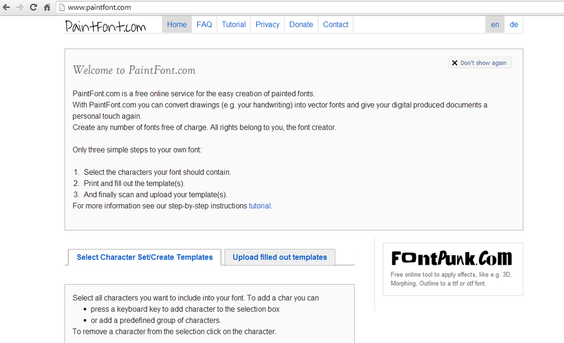
This excellent site, WWW.PAINTFONT.COM allows you to create a font of your own personal handwriting or create you own brand new font design.  

This creates a simple downloadable font pack of your new font. Type away and your font appears on screen.  Just follow the four simple steps below....

STEP 1: GO TO THE WEBSITE
Picture

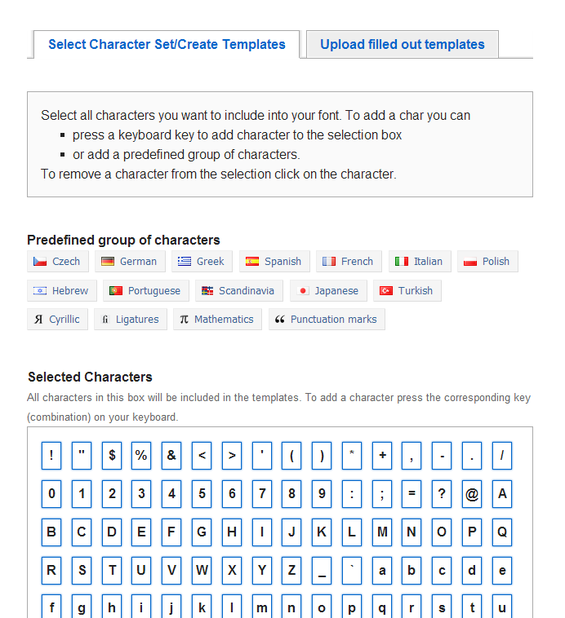
STEP 2: DOWNLOAD THE TEMPLATE AND COMPLETE
Picture

STEP 3: COMPLETE THE TEMPLATE, SCAN AND UPLOAD TO THE SITE
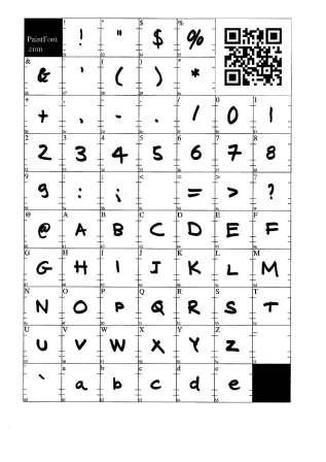
Picture

STEP 4: DOWNLOAD, SAVE AND INSTALL YOUR NEW FONT
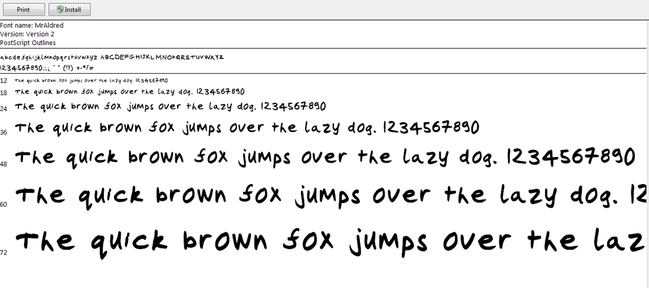
Picture
1 Comment

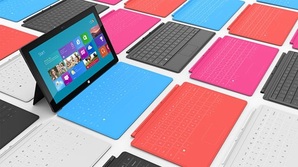
A Review Microsoft's Surface RT

9/25/2013

2 Comments

 
Picture
I am not really one to write reviews but, so much has and is being said about the Surface.  

I was fortunate enough to get my hands on the RT model and as a CS teacher, Raspberry Pi enthusiast and educationalist 

I felt that my experience may be helpful to others in making the selection of a suitable mobile device to augment learning.

Key points are, 

Hardware

1.       It has a USB 3 port, enough said.
2.       The touch screen is accurate, fluid and responsive, even when using software and desktop windows.  It has a great 
           viewing angle.
3.       The Surface feels robust, light but tough.  The coating is protective and adds to the solid feel of the device.  Yet it is not                  heavy.  It does feel natural in your hand.
4.       The landscape orientation of the screen complements the Desktop / Metro interfaces.
5.       The magnetic keyboard attachment is precise and feels natural in use.  The keys are responsive and the hotkeys are a                  bonus that add direct control via the keyboard.  It also saves the screen from greasy fingerprints.
6.       The keyboard doubles as a cover and case.  This makes the Surface feel protected, no need for screen guards.
7.       The on-screen keyboard is ergonomic; it doesn’t swallow up the whole of the screen and yet still displays all the keys and              symbols you require.  Shifting between Caps and functions is achieved through the minimum number of clicks.
8.       The kickstand is genius; it will support the device standing in both portrait and landscape positions.  The angle of the                    device when upright is just right.
9.       There is a Micro SD card reader
10.     There is a Mini HD output, great for sharing you device on a larger screen.

Software

1.       There are no issues with Flash… enough said.
2.       It boots up in about 27 seconds, from cold, from sleep it is about 2 seconds.
3.       The Metro Tiles at first look plain, a rectangular of colour.  However, the true benefit is seen when you receive an email or            Tweet and the Tile displays a summary of the incoming communication without having to open the app.  The SkyDrive                  Tile displays the name of the last file uploaded, The Twitter tile displays incoming tweets and so on.
4.       Surface comes with a pre-installed Office 2013 bundle, Word, Powerpoint, Excel and One Note.  These respond fluidly to             touch and are smart and intuitive.  Users can import pictures directly from the web, rather than the traditional, right click,             copy, paste.  All files can be shared directly with your cloud storage.
5.       You can view and work on two apps or software on the same screen.  Read email while watching YouTube, browsing the              Internet and creating a Word document.  A quick swipe to the left maximises the app, a swipe again and it returns to the              split screen
6.       Closing the apps is different, but not wrong, There are no five finger hand grab and snatch hand movements, this took a               while to get used to but, once learnt are very simple to use.
7.       There are a number of ways to do a task, for example closing an app.  This can be annoying for those who want a single               method to control the device however, it offers the user flexibility.
8.       The app store is currently limited; there are a selection of games, utilities and software but nothing striking yet.
9.       Many reviews comment on the lack of an off button.  You can add one to the start screen but to be honest, it is such a                  useful device why would you ever want to turn it off?

The biggest frustration is that the Windows RT architecture will not support all software.  This comment is not without a sense of irony.  It is like buying a car with a 1.0 litre engine and saying that it struggles above 80mph, or buying a pair of size 5 shoes and they don’t fit your size 10 feet. 

This is where the Surface PRO will come into its own.


2 Comments

Top Tips for NQTs and New Teachers

8/29/2013

1 Comment

 
Picture
So you are about to start your new teaching career.  You have shed blood sweat and tears on a PGCE or other course, gathering evidence for your teaching strands and portfolios.  Now the real job begins.  Here is some wisdom and ideas. Good luck.

1) Read the school policies and guides, sanctions and rewards systems, absences, lateness, marking etc.  If you are familiar with these then you can slot straight in with the department, school and parents' expectations.

2) Learn and understand the school's 'way of doing things'.  Some school structures are fluid and a Head Teacher will gladly support you knocking on their door asking for support.  Other schools will prefer you going to your HOD first, or if it is a Pastoral issue, the HOY or if it is a teaching issue, the Head of T & L.  

3) Stick to and use the school sanction and reward system.  Make sure that you escalate the sanctions, don't wait until the behaviour is so bad that the student has to be removed.  Challenge disruption straight away, try the warning first, then the Red Comment or planner on my desk, then Detention and so on.  Always follow through a sanction, never threaten something you will not be able to do or won't follow up.  "You will be in Detention every day for a year!"       

4) Stick to the school sanction system, even when you are being tested to your limits

5) Set your high standards straight away and stick to them. Students will make a decision about who you are and what you stand for within the first 30 seconds of meeting you, then they will test it.  Stay true to your expectations of students.

6) Share you expectations with your classes; tell them what you expect from them.  Empower them by asking them if they understand or if anything is not clear, then you can always refer back to these expectations should students not follow them.

 7) Always challenge the little things, such as equipment and incorrect uniform.  Many teachers think these are insignificant, however, students soon begin to think, "If Miss / Sir always picks me up on my nail varnish, what would they do if I swore? I will not do that..."  Also think about it, is it not better to have to spend your time dealing with ties and trainers rather than fights and verbal abuse?"

8) When dealing with confrontation give students an option , "you can either stop talking to Darren and come back in and work or I will have to phone home, what do you want to do?" 

9) Never underestimate students' need for boundaries.  They need to know where they stand and what is expected of them, especially as school may be the only consistent thing in their lives.

10) Take every opportunity to contact Parents and Guardians, this relationship can support you later on.  If a parent writes a note in a planner, phone them, if you are concerned about a student, phone home.  Teacher, Student and Parent relationships are vital to successful behaviour management.  Parents talk to each other, they will talk about you this will feedback to students.

11) Build rapport with all students, learn what they like and what they have been doing.  If they have been away on D.O.E, ask how the blisters are, if they are having friendship issues ask them if you can help.  If they breed snails, talk to them about snails, (Yes this is true!).  A good icebreaker to use if they have other siblings in the school, "I never realised that Sarah was your sister, ..., do you get on with her.."

12) Students will try and distract you and go off task with 'friendship' chat, "Miss did you see Eastenders last night, who do you think will win the British Bake off, ?".  If it is not an appropriate time to talk then tell them, "No, but tell me about at break, now back to the task... have you completed section... "  

13) Get to know your cleaner, buy them a Christmas present, talk to them.  A clean and tidy classroom is a positive environment to learn in.  Also, most cleaners know all the gossip!

14) If a student is kicking off big time ask them, "Is it me?"  Most of the time it is not and you can manage the behaviour better, ask them if they can settle for the remainder of the lesson, do they need to deal with the issue now or can they wait till break.   

15) Speak and learn from other teachers, what are their tricks and tips, what do they do, how do they teach students?


1 Comment

Why programming is important, Yr8 students view

7/23/2013

2 Comments

 
Programming is the future
STUDENTS CLICK WITH COMPUTER PROGRAMMING...

Programming. Just a few years ago, only computer technicians and software designers would know their variable from their dialogue box, but last Tuesday, a group of Year 8 students were taught how to create a basic programme, or even a game in under one and a half hours. 


Using a piece of software called EasyGui and Python, all 20 children had fun designing whatever tickled their fancy. Enthusiastic programmer, James Turner said, “It’s great because it teaches us things we might not learn in normal lessons, and I’m interested in widening my knowledge.”

But why? It may be enjoyable, but there is a deeper reason for this digital delight. Computing teacher, Mr Aldred explains, 


“Programming is an important and valuable part of modern life, but the main thing is that it gets them to think.” 

Student Dan Rainer agrees “It will help me in later life because I’m interested in this subject.”

But will, in just a decade’s time, there be a bunch of computer technicians from Thirsk, inspired by Mr Aldred’s programming enrichment day? Mr Aldred hopes so.


The door opens as the software designers of the future stroll out of the airy computer room for their lunch.


By Aidan Tulloch, Cameron Peacock, and Millie Cuthbert
2 Comments

190, Yr 5 Primary students learn about Binary, pixels and coding

7/4/2013

4 Comments

 
As the warm morning of Wednesday 26th June began, school routine continued normally across most schools in the local area. 


However a number of Year 5 Primary School students from a wide range of schools including both those in Thirsk’s immediate vicinity such as Sowerby and Thirsk community, as well as those more further afield such as Dishforth and Baldersby – found themselves taking part in an Enrichment day at Thirsk School and Sixth form college.  An experience which for some will have been their first taste of Secondary School!

The focus of the day was to give the Primary School pupils a taste of life in Secondary education whilst also allowing them the opportunity to use new resources.  
The students were split into groups and the merry Year 5’s were dispatched to take part in either a Computing or a P.E workshop.

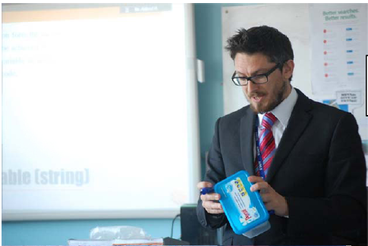
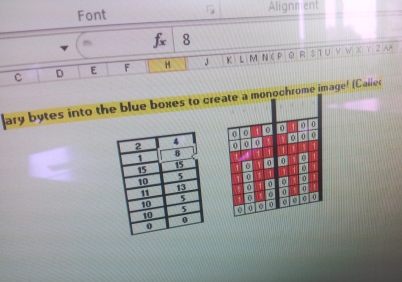
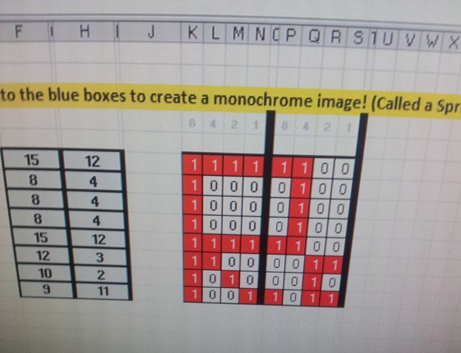
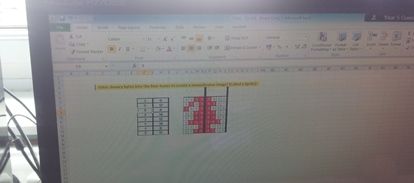
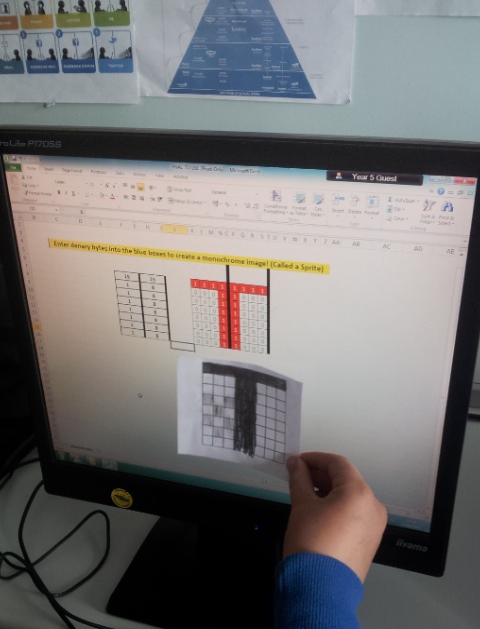
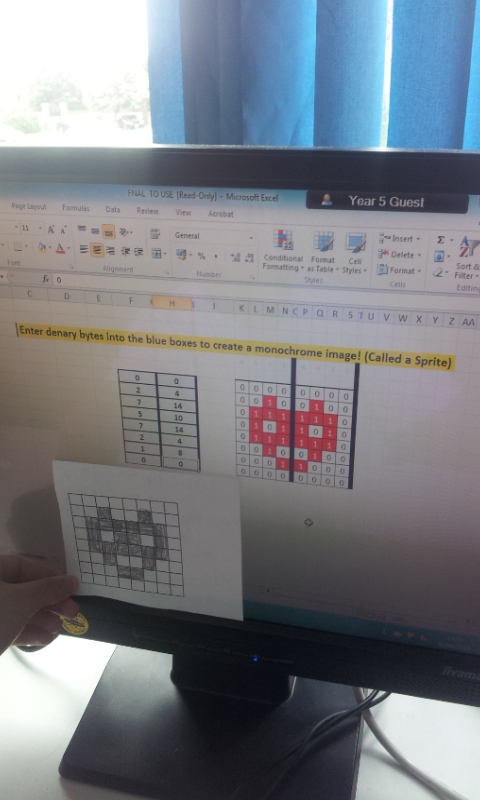
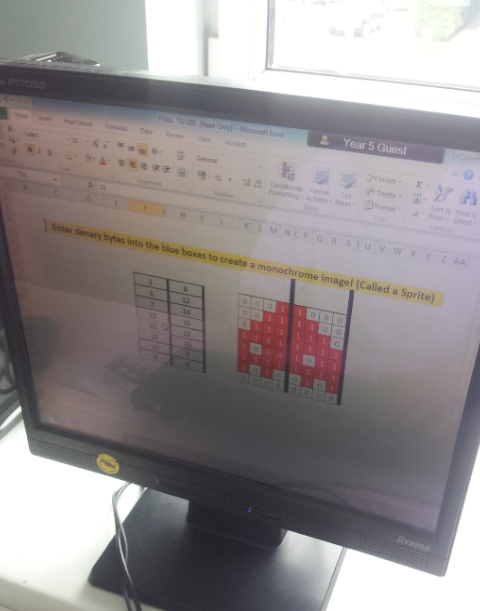
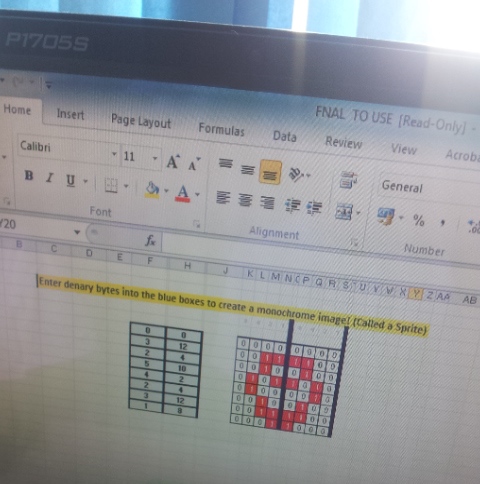
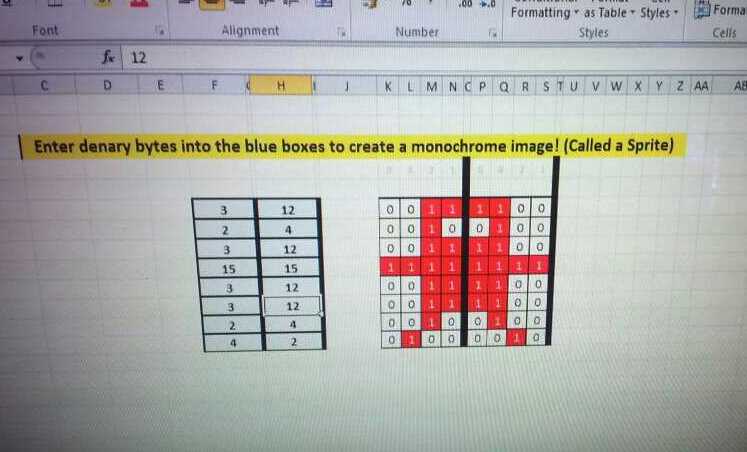
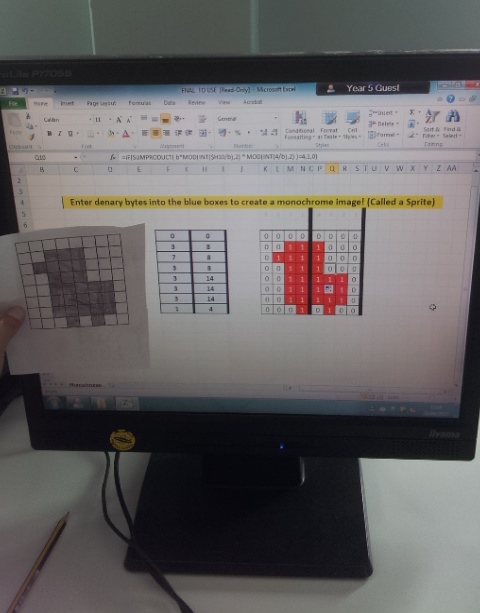
The Computing workshop, overseen by the school’s head of Computing,  Mr.Aldred with aid from three other staff,  placed a focus on binary code and coding images and pixels by means of using a pre-programmed spread sheet with Microsoft Excel. Surprisingly, while some were taken aback by the idea of the tasks given to them at first, with a bit of help, they were able to fulfill the set tasks and also learn about how and why binary is used, whilst enjoying themselves throughout.

Overall the day itself was a great success! The children all found an interest in being part of a Computing day.  

Plenary: "Write a poem or rap about what you have learnt today"

4 Comments

7 tips for 7 weeks #7t7w

6/5/2013

3 Comments

 
Picture
7 tips for 7 weeks (7t7w)
There are just over seven weeks left until the end of term, what better way to end than with a new weekly tip / trick /tool to use each week.  Below are 7 simple ICT classroom tricks that can be implemented straight away, they require no preparation, cost or time.

Week 1: Monitors OFF!
When you want the students’ attention or you want to address them as a whole, ask them to turn their monitor off. I see so many staff struggling to talk to a class while students are clearly more engaged in what is on their screen.      
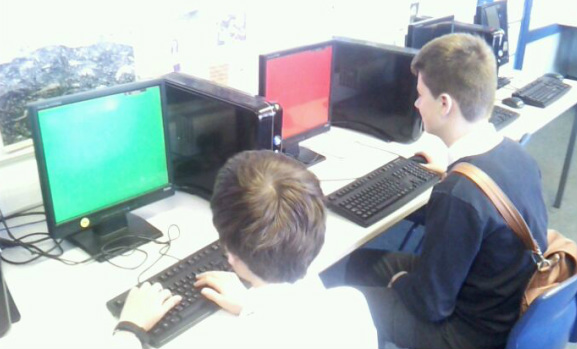
Week 2: Red – Help, Orange – just thinking
It is sometime near impossible to see every student in the classroom, it becomes difficult to know where to direct your focus and support.  I get students to load a PPT slide and format the background to bright red.  If they have a really urgent question that is stopping them from progressing forward, they display the red screen.  You can quickly see who needs support. 
However, students must first display an orange slide which indicates to other students that they require some support.  Other students then help them, before teacher intervention.

Week 3: Green, Orange, Red
An upgrade on the above idea, students create three slides, one red, one orange and one green.  Use these for mini plenaries and gauging the general temperature of the learning.  At various points in the lesson ask the students to display the colour (full
screen) that reflects say, who thinks they are achieving a particular level, who knows how to improve their work and so on.

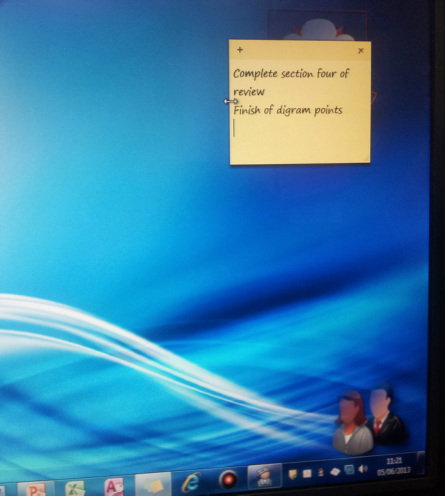
Week 4: Windows 7 sticky notes
Before the end of the lesson, students load up the ‘sticky notes’ and add a quick memo or overview to their desktop.  Next time they log in they have a reminder what they were doing or need to do.

Week 5: Have you PAGED yet?
To foster independent learning and resilience, students are not allowed to ask me, the teacher for help until they have Paged.

P – Program Help (F1)
A – Asked another student
G – Goggled it
E – Experiment – if you make a mistake you can always ‘undo’ it

Week 6: Paint
Paint is a program that students seem to want to use to doodle, let them!  Get them to draw key concepts, keywords or ideas. 
Playing ‘win, lose or draw’ always goes down well as an activity, students take a key concept and have to sketch it. (no words or numbers)  Other students have to guess the concept.

Week 7: Experts and Lead Learners
Have you got several very able students that race ahead and complete the work very quickly?  Use them, get them to design and deliver learning activities for the lessons.  They can support other students and show them methods and skills.  It also enriches their learning experience rather than waiting for other students to catch up with them!


Picture
Week 4: Sticky Notes
Picture
WEEK 3: "Who knows what they have to do to attain a level 6?"
3 Comments

Pi vs the Pad

3/24/2013

1 Comment

 
The Pad and the Pi (The roles of ICT and Computing)

Last week every  teacher at work was given an iPad 2.  Stylish design, slick operating  system and a web-browsing experience that rivals everything else.  But,  what has the iPad taught us, what have we learnt?  Ironically last week my fourth Raspberry Pi also arrived.  What is the relevance and role of these  two very different devices?

Software developers and companies have simplified  operations and procedures for the masses.  They have shortened the process  time for animating and video editing to minutes as oppose to hours.  This has allowed more students and teachers to access the benefits of these and other  media as teaching tools.  However, has it come with a dumbing down of our  understanding of how it works?  Taking for granted that a device “just does it”. 

Once students stop asking why and how and we dilute their  enquiring minds, then they stop discovering, learning and developing.  How  can we transition forward if we don’t know where we have come from?  Or is progression destined to become the digitisation and digital form of everything analogue?  I used to write a letter, I now send an email, I listened to a record now I listen to an MP3, I used to buy a book and read it, I now download it and store it on my device.  (Not true, I still buy books)

Computation forces you to question, think and understand concepts, too many students take it for granted that something happens and that is it.  Can you imagine a time when so many humans don’t know how stuff works that we begin to believe it is magic?  Imagine taking a laptop, charger and digital camera back to 1950s.  Would it be viewed as technology or magic? 

Or would it be so advanced for the time that it would completely pass people by.  Considering the analogy with magic is relevant.  Magic tricks are illusions, tricks and skills that engage, until you understand how it works and then the engagement comes from impressing and fooling others.  I often get my A level computing students to learn one magic trick and share it with the class. 

It requires the skills of learning how it works and also perfecting the illusion of the trick.  This is the subtle balance between trick and technique, ICT and Computing, content consumption and content creation.  Maybe there is a fear that by understanding how technology works it takes away its engagement and makes it mundane?  The iPad operating system looks great and is
stylish.  This is its strength, it makes things very engaging.  However, if you were presented with the coding behind the software would I still be in awe? (Would you want to change the coding to see resultant change on the display?)

With reference to learning and the iPad, students ask me “do you know how to change the brightness?, can you install this app?, have you seen this video?, I’ll make a podcast, I can use this app to mind map my ideas”.  Fundamentally, in this process students are uninterested in the understanding of how the programs, interfaces and software are developed and created. 

In stark contrast the Raspberry Pi forces you down a road of learning – students ask me “how do I connect to the Internet because the Pi does not have Google, well Google is not the internet, It is a search engine, you need a browser, what is a browser..?”.   One of my students, with an enquiring mind was given a Pi for their birthday.  They are a huge Minecraft fan and wanted to be able to create their own server to host games, (basically because they keep getting killed and raided!)   The Raspberry Pi is a powerful vehicle where a student no longer plays games and consumes content. 

Now they are learning how to create and solve problems.  This 11 year old setting up his own serving, asking me about IP addresses and DHCP is learning so much more than the student downloading the latest app.  Students MUST develop the independence of an enquiring mind, understanding and overall question how things work. 

Therefore, use the appropriate tools and devices to consume content and the appropriate tools to create it, but overall, it has to be engaging.
1 Comment
<<Previous
Forward>>

    Author

    TeCoEd

    Archives

    August 2020
    July 2020
    October 2014
    April 2014
    February 2014
    January 2014
    November 2013
    September 2013
    August 2013
    July 2013
    June 2013
    March 2013
    January 2013

    Categories

    All
    Binary
    Computing
    Education
    Font
    New
    Nqt
    Pixels
    Primary
    Programming
    Teaching

    RSS Feed

Powered by Create your own unique website with customizable templates.